You tap an Official Theme Store Link after reading a Xiaomi theme review, but instead of seeing a Download button, the browser displays a page in Chinese. On some phones, the link opens but never launches the Themes app.
That usually does not mean the theme file is broken. The confusion comes from how Xiaomi’s web listings hand the theme over to the system Themes app. This tutorial explains the complete process for finding, verifying, downloading, applying, and customizing themes on Xiaomi, Redmi, and POCO devices.
When I plan to find and apply the best theme, I check more than just its preview images, screenshots, features, size, and developer. I download and apply the theme by checking the compatibility with my MIUI or HyperOS Version, ROM-based features, and then try it.
Editorial disclosure: Many themes in Xiaomi’s store are made by independent third-party designers. An official store listing does not mean Xiaomi designed the theme. This website does not distribute theme APKs or modified packages; we review themes and help readers locate the correct listing inside Xiaomi’s official Themes app.
Quick Answer: Apply a Theme from an Official Store Link
If you only need the short version, follow these five steps:
- Tap the theme page’s Official Theme Store Link on a Xiaomi phone.
- Select Open in Themes or Theme & Wallpaper when prompted (may not prompt this all time).
- Verify the theme name, designer, size, and compatibility.
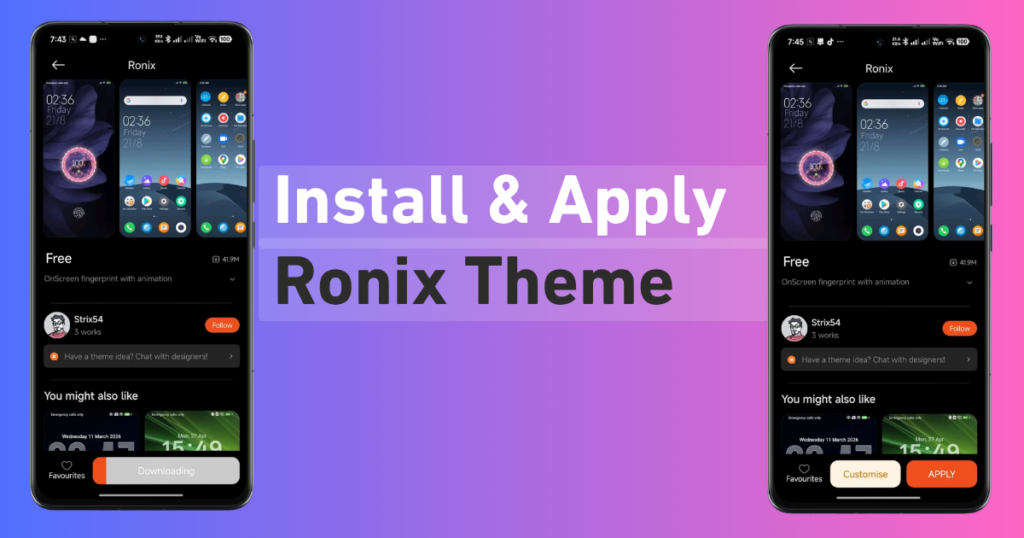
- Tap Download, Free, or Premium inside the Themes app.
- Tap Apply, then select Lock screen, Home screen, System, and Icons as needed.
Xiaomi’s official theme guide confirms that users can download and apply a complete theme or, where supported, choose individual Lock screen, Home screen, System, and Icon components.
What to Check Before You Download the Theme
It’s recommended to take a minute to verify a few details before beginning a Xiaomi theme download. It reduces the chance of downloading the wrong fingerprint theme. So before you start, make sure that,
- You are using a Xiaomi, Redmi, or POCO device with the official Themes app;
- The theme supports your MIUI or HyperOS version;
- You know the expected theme name, designer, and package size;
- The phone has a stable internet connection;
- You can sign in to a Xiaomi Account if the app requests it;
- The Default or Classic theme remains available under My themes.
Not every Xiaomi-branded device supports online themes. For example, Xiaomi states that the REDMI Pad SE does not support online themes, so a missing Themes menu on a particular tablet is not necessarily a software fault.
Method 1: Download a Theme Using the Official Store Link
An official link on a theme-review page normally points to a Xiaomi zhuti.xiaomi.com listing or a Themes app deep link. It is not supposed to download an APK; its purpose is to open the listing in the official app on a compatible Xiaomi phone.
Step 1: Open the Theme Page on Your Xiaomi Phone
Open the review page for the theme you want on a Xiaomi, Redmi, or POCO phone. You can use Chrome, Xiaomi’s default browser, or another up-to-date browser.
A desktop computer cannot apply the theme because the download and device-compatibility checks occur inside the phone’s Themes app.
Step 2: Tap the Official Theme Store Link
From the Ronix Theme Page, scroll to the download section and tap the button labelled Official Theme Store, Official Store Link, or similar. If that button immediately downloads an .apk or .mtz file, it is not following the official-store method described here.
A proper store link should open a Xiaomi theme webpage or trigger a prompt to launch the Themes app.
Step 3: Choose “Open in Themes” (May not pop up all the time)
When prompted, choose Open in Themes, Themes, Theme & Wallpaper, or the equivalent system app name shown on your ROM. The wording can differ between MIUI and HyperOS versions, languages, and regions.
The web page may display a Chinese message asking you to continue in the Theme Wallpaper app. That is not evidence of a damaged theme; Xiaomi’s web listing is designed to hand the content over to its phone app.
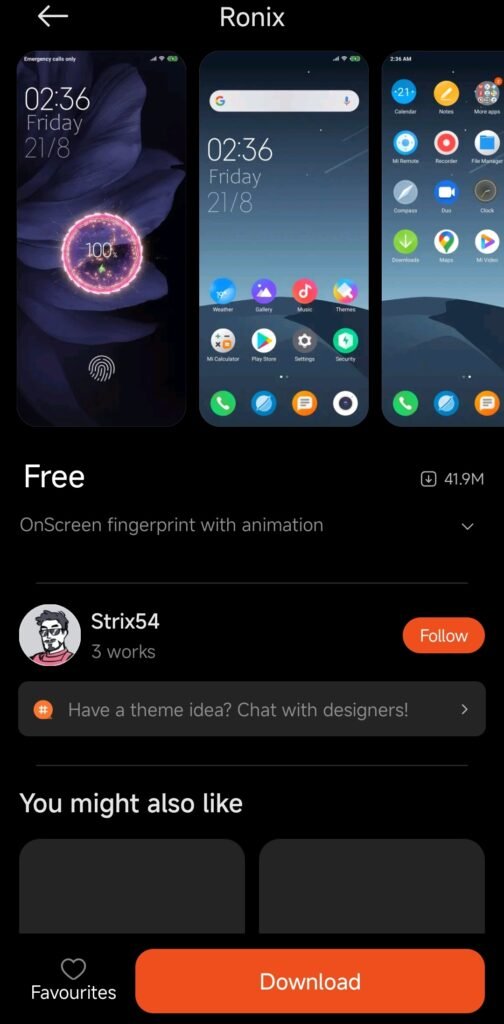
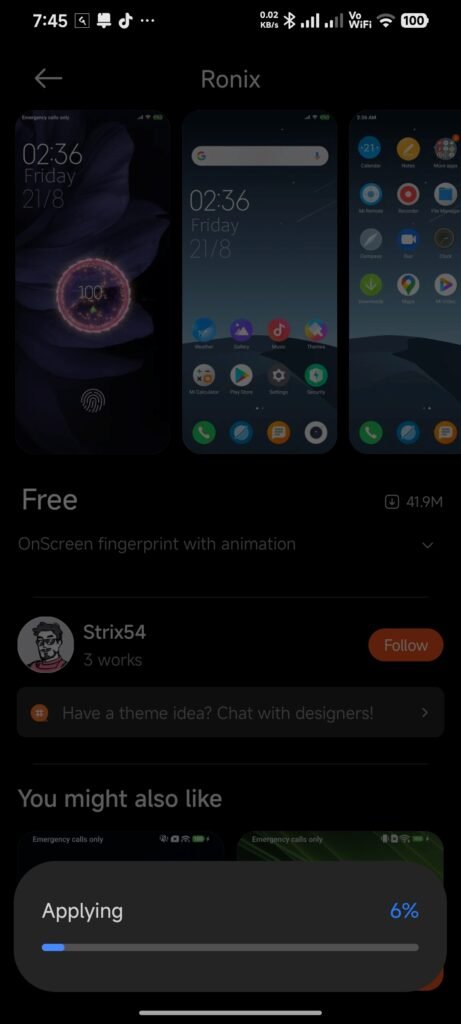
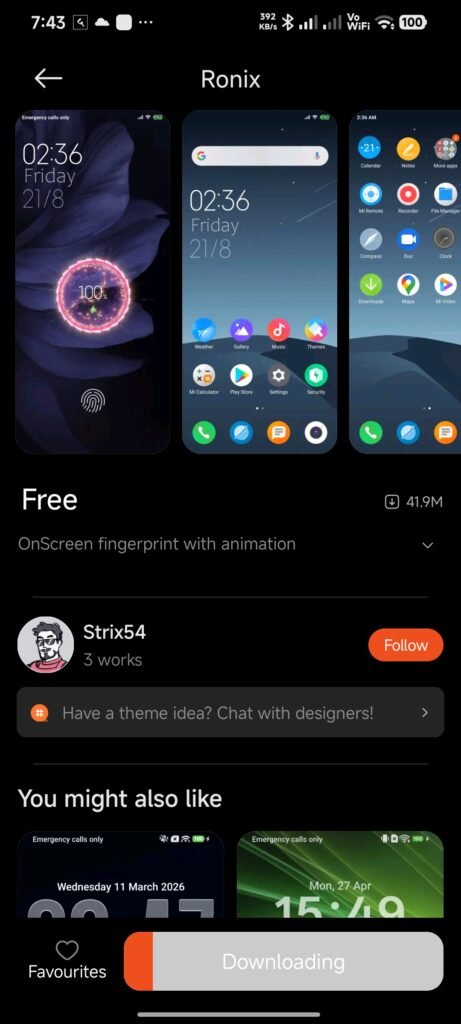
Step 4: Verify the Theme’s Identity
Do not press Download the moment the app opens. Compare the listing with the review page and check:
- Exact Theme Name: “Ronix,
- Designer or creator name: Strix54
- Package size;
- MIUI or HyperOS compatibility;
- Preview screenshots;
- Free or Premium status;
- Available reviews and update information.
The designer and package size are especially useful when several themes have similar names. “Ronix” and “Ronix UI,” for example, may appear related while using different designers, sizes, and compatibility targets.
Step 5: Download Inside the Themes App
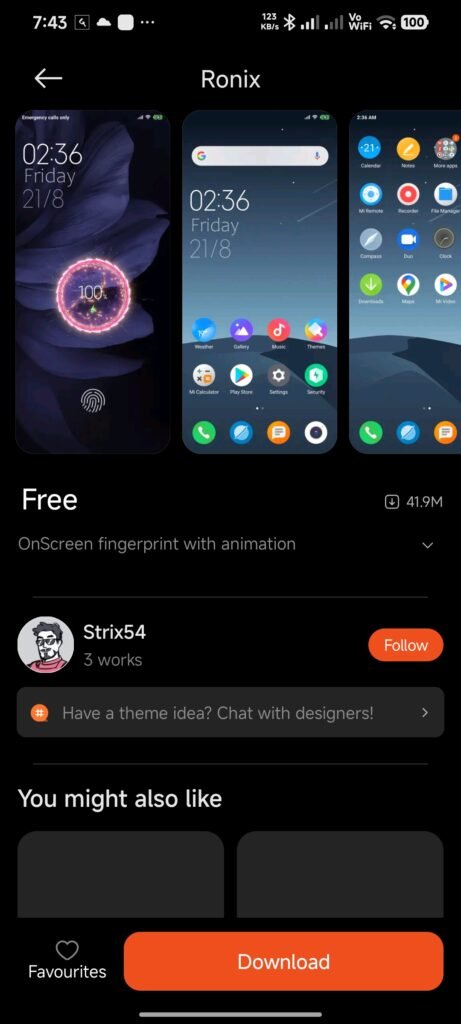
It’s a free Android MI Themes Fingerprint Lock, so tap on Download; it starts downloading.
Step 6: Tap Apply
After successfully downloading the theme, you have to tap on Apply. Applying the complete package can change the wallpaper, lock screen, icons, and supported system elements together.
Do not close the app or restart the phone while it is applying the files. Once it finishes, inspect both the home screen and lock screen.
Step 7: Test the Result
Don’t judge the theme installation just by the Home Screen alone. Check each relevant area:
- Lock-screen clock and wallpaper;
- App icons;
- Status bar and notification shade;
- Settings and supported system apps;
- Fingerprint or charging animation, when included;
- Text readability and working shortcuts.
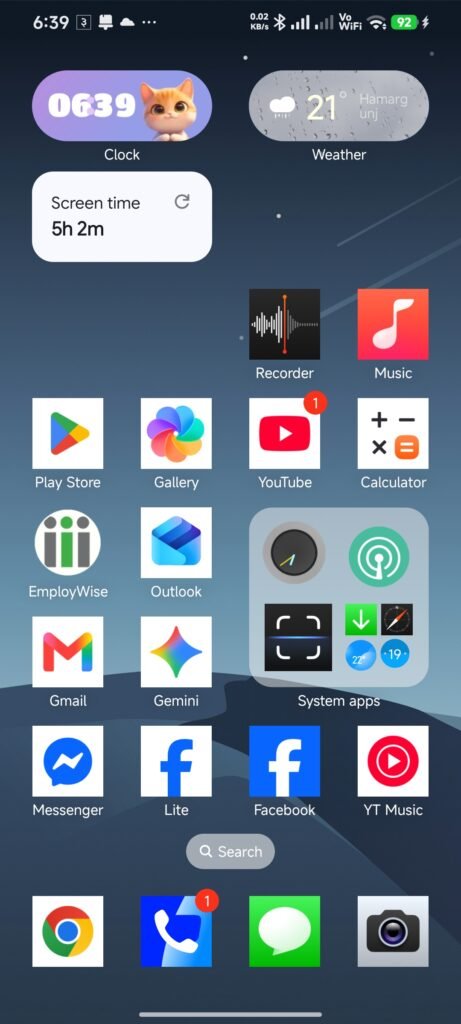
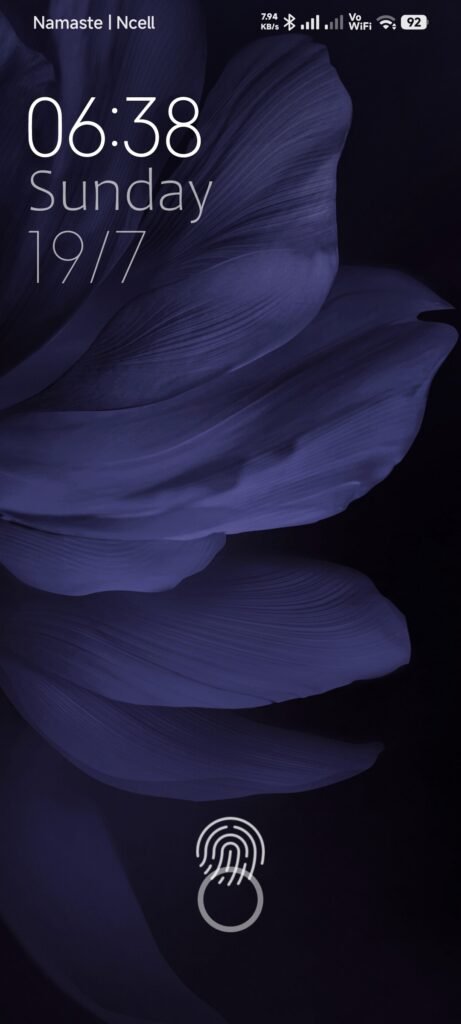
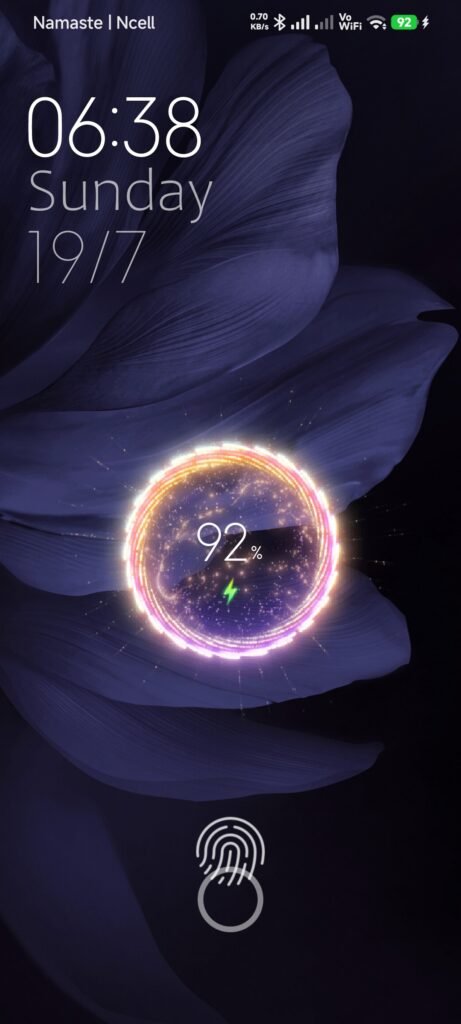
If an element overlaps, lock and wake the screen once. If the problem remains, restart the phone and reapply the theme.
Method 2: Search Inside the Themes App if the Link Fails
If the official link remains in the browser, you do not need to search for a random APK. Check whether the same theme is available through the official app search.
- Open the Themes app on your phone;
- Tap the Search icon;
- Enter the exact theme name: ‘Ronix’
- Match the designer and package size: designed by Strix54,
- Tap Download, followed by Apply.
If the theme does not appear, regional or software compatibility can be the reason. Xiaomi explains that Themes app content follows the Xiaomi Account region or, when no account is signed in, the device’s system region.
Avoid repeatedly changing an account region only to force one theme to appear. If the listing is not officially available for your region or software version, choose a compatible alternative. An MTZ file does not remove regional or software compatibility limits.
How to Customize a Xiaomi Theme After Downloading It
Not everyone wants every part of a complete theme. You may like its lock-screen animation but dislike the icons, or you may want its icon pack while keeping your own wallpaper.
Xiaomi’s official guide confirms separate application of Lock screen, Home screen, System, and Icon components on supported devices. The exact menu path, however, can vary by ROM and version.
Where Is the Theme Customization Menu?
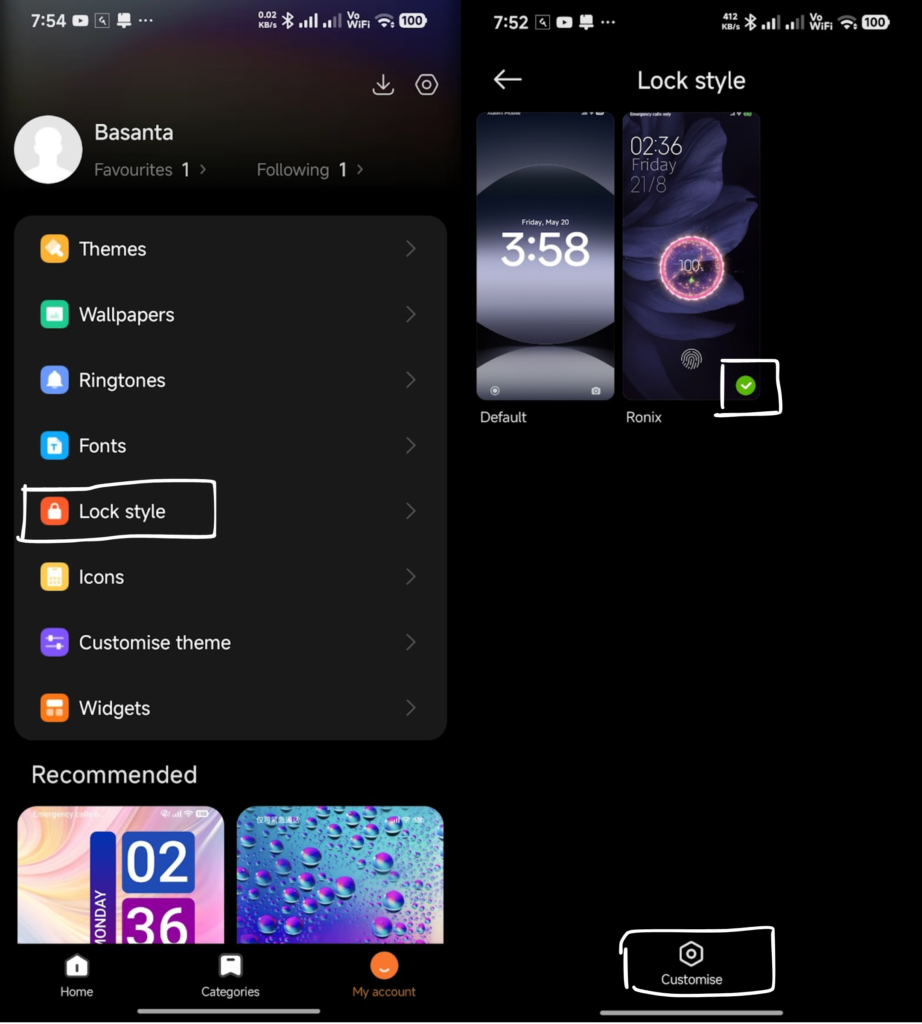
On many MIUI builds, the common path is:
Themes > Profile/My Account >Lock style>Select the particular theme(marked with a tick ✅)> Customize.
1. Apply Only the Lock Screen
The Lock screen component can control the clock style, unlock layout, fingerprint visual, or charging animation. It is the most important component for a fingerprint-focused theme.
Open Customize theme > Lock style/Lock screen, select the downloaded theme, and tap Apply. A different lock-screen wallpaper or lock style may replace the animation; if that happens, reapply the theme’s Lock screen component.
2. Customize the Home Screen Separately
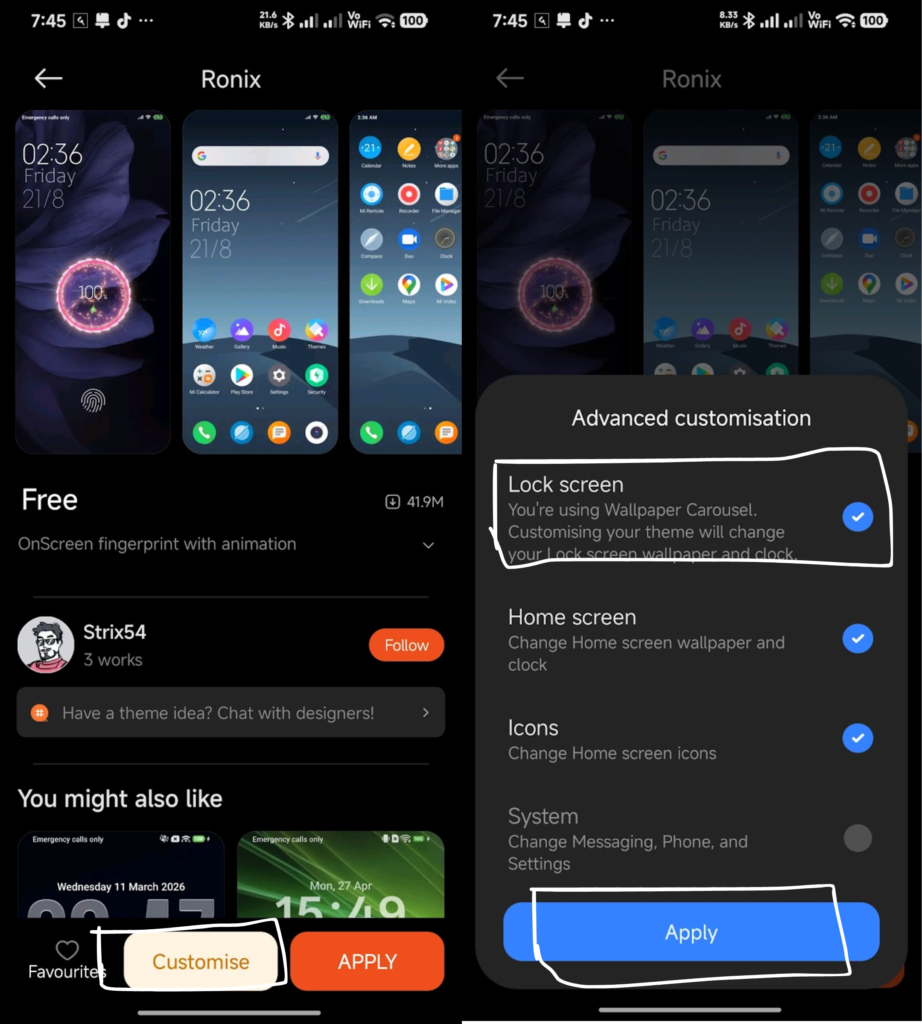
After applying this Ronix Fingerprint Theme, it affects the Home screen component, like wallpaper, widget background, selected launcher styling, etc. So, based on your requirement, you can turn off these home screen-changing features by deselecting this option from customise.
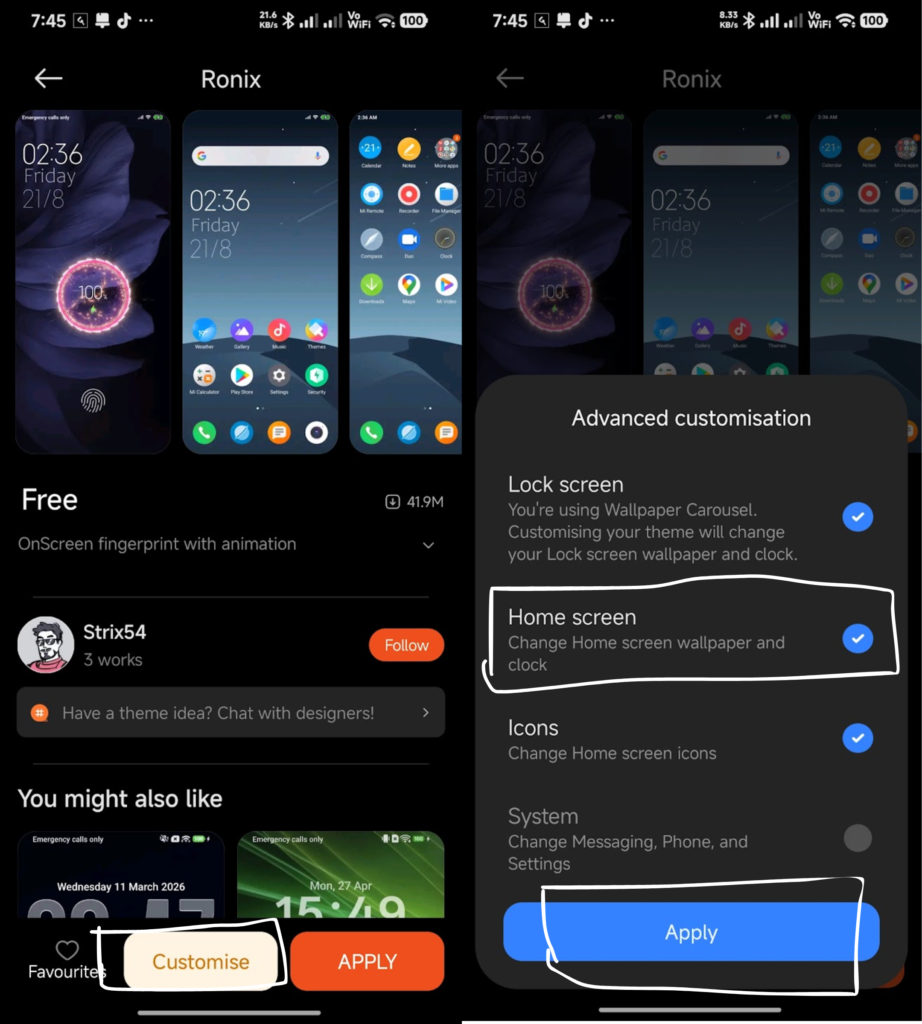
The Home screen component can affect the wallpaper, widget background, and selected launcher styling. Change this part separately when you want to keep the theme’s lock screen but use your own home wallpaper.
3. Use Icons from Another Theme
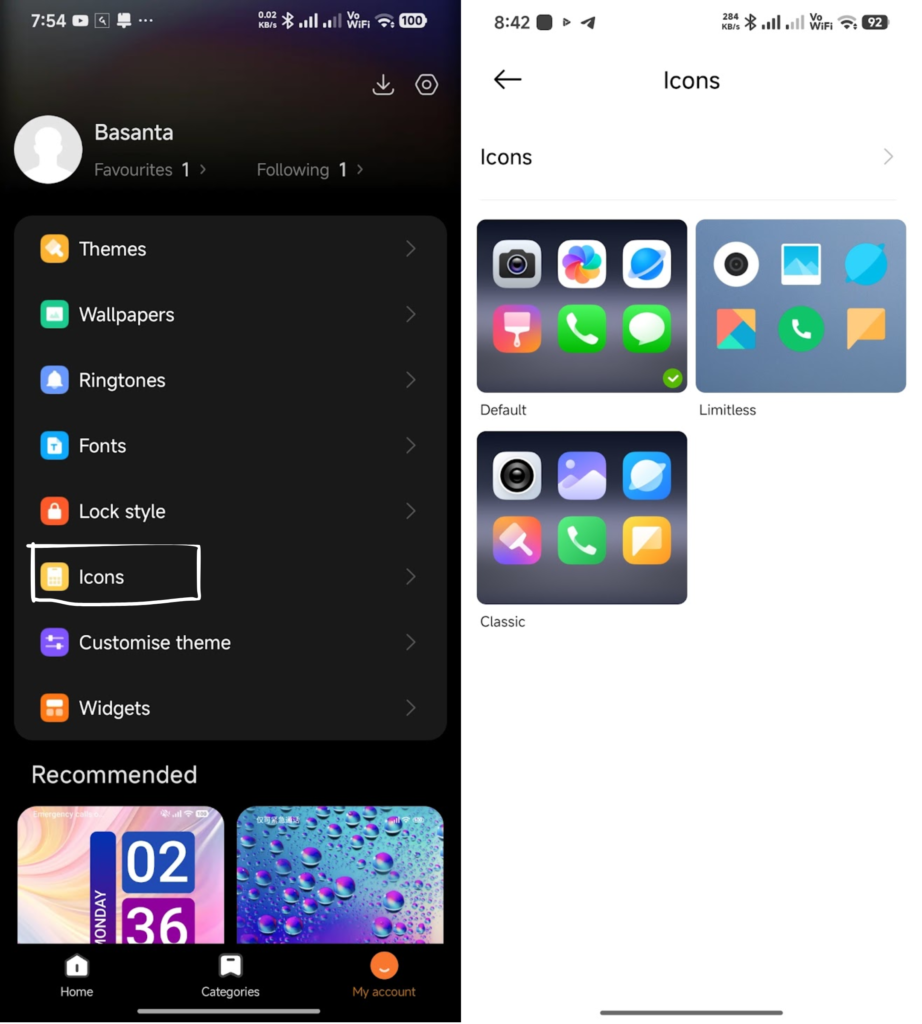
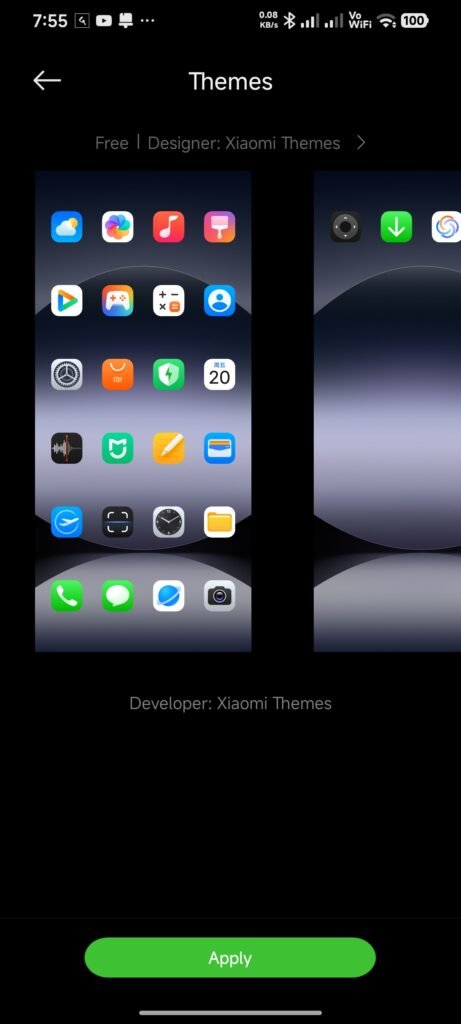
If you like the lock screen of this Ronix Theme but you are not okay with the App icons, then you can apply other themes’ app icons easily. Xiaomi allows you to use other theme packages available in the theme store; to apply it, easily download the theme, then select the Icon component from another downloaded theme.
Go to My account>Icons>Select the Themes icon package>Apply.
4. Change the System Style
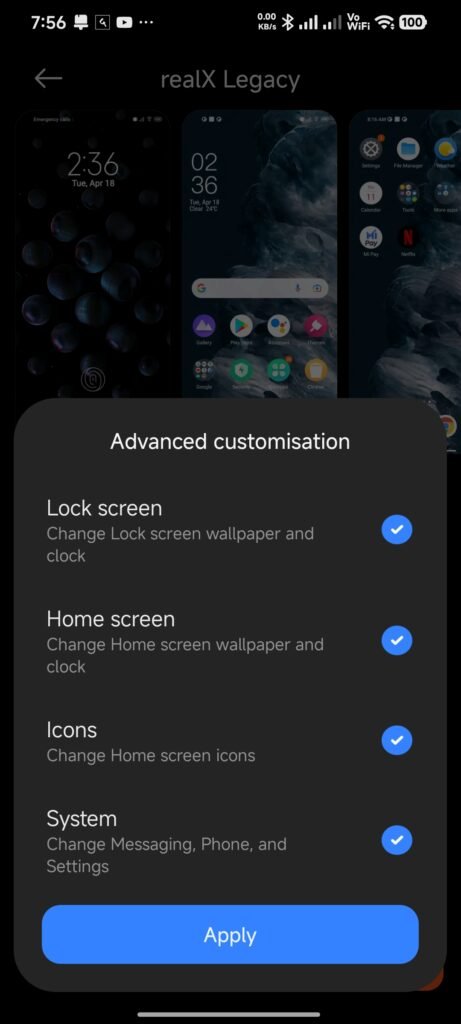
After applying the System Style, it affects Settings, the status bar, notification shade, Phone, Messages, and other supported panels in your Xiaomi Phone. A preview does not guarantee that every shown element will change on every ROM.
Depending on the Theme and ROM region compatibility, not all themes offer the System Style under Advanced Customisation. Even this Ronix Fingerprint Theme doesn’t allow enabling System in Global ROMs.
To enable System, go to the particular theme installed in your Theme Store, My account>Themes>Select Theme>Customise>Tap/Enable System>Apply.
5. Replace the Wallpaper but Keep Other Components
This Ronix Theme doesn’t restrict you from customizing the phone. You can use a personal wallpaper after applying this theme. You can set a different image for the Home screen, lock screen, or both.
If the theme’s lock-screen animation depends on its wallpaper layer, replacing the lock wallpaper may remove that effect. Change only the Home screen wallpaper first when you want to preserve a fingerprint or charging animation.
6. Customize the Font
On supported devices, font settings can appear under Settings > Display & brightness > Font settings or Settings > Wallpaper & personalization > Fonts. The exact path varies by model and software version.
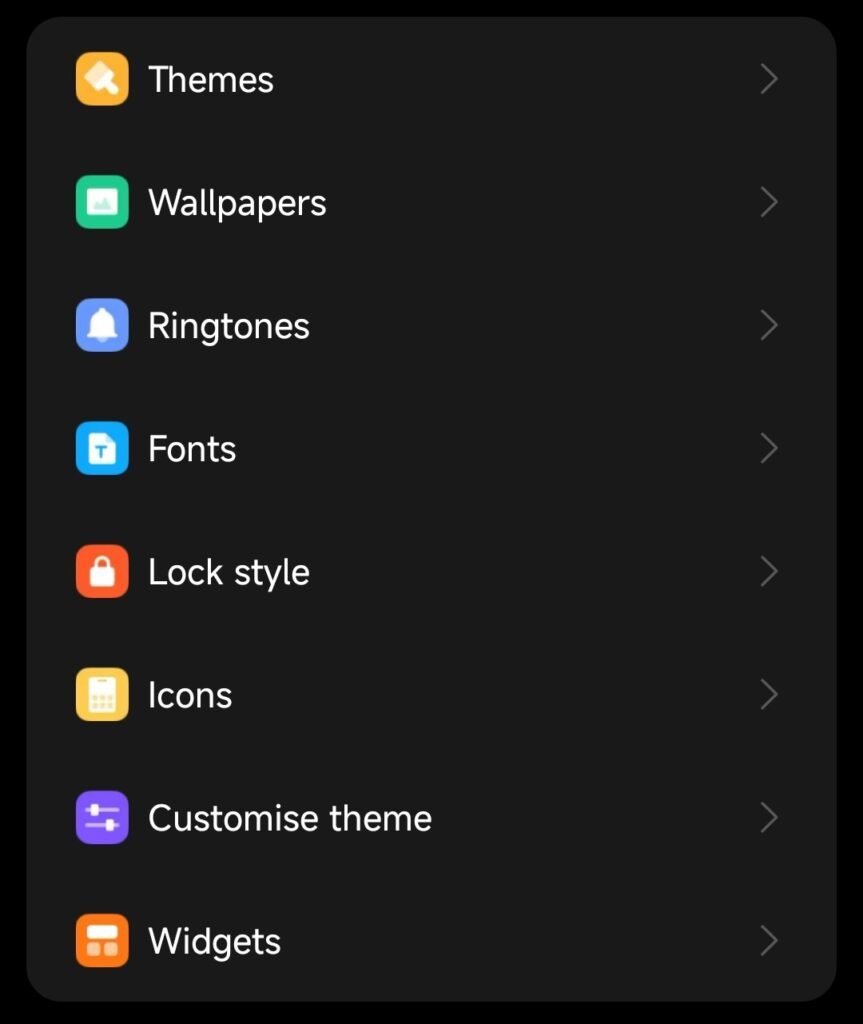
After changing it, check Bengali and English text, notifications, and banking or utility apps for clipping or poor readability. A stylish font is not useful if important information becomes difficult to read.
7. Adjust Lock Style and Always-On Display
Some devices provide Settings > Wallpaper & personalization > Lock style for separate lock layouts. Always-On Display options depend on the display type, device model, software, and region.
When a third-party lock-screen theme is active, not every system clock setting may remain available. Make one change at a time and lock the screen after each adjustment to confirm the result.
Three Recommended Customization Setups
Setup Components to use Best for
Full Theme Experience Lock screen + Home screen + System + Icons Users who want the designer’s complete look
Balanced Daily Setup Lock screen + Icons with a personal Home wallpaper Users who want animations without losing a familiar wallpaper
Fingerprint Focus Lock screen only; keep everything else Default Users who want the fingerprint or charging effect with minimal UI changes
Use Phone, Settings, the notification panel, and lock screen for a few minutes after applying a setup. If contrast or shortcut usability becomes worse, restore only that component from the Default theme.
Special Notes for Fingerprint and Charging-Animation Themes
In fingerprint-focused themes such as Ronix, RealX Legacy, or New Oxy Era, the animation is normally part of the Lock screen component. Applying only Icons or the Home screen may not enable the fingerprint effect.
An on-screen fingerprint graphic is visual decoration. A theme cannot turn a side-mounted or rear sensor into an in-display sensor, and it does not alter the phone’s biometric security method.
A charging animation also does not increase charging speed. The charger, battery, and charging hardware work as before; the theme only changes the presentation.
How to Remove a Theme and Restore the Default Look
You do not need a factory reset when you dislike a theme. These steps are normally enough:
- Open the Themes app;
- Go to Profile/My Account/My themes;
- Select Default, Classic, or the phone’s original theme;
- Tap Apply;
- Restart once if an old element remains visible.
To restore only one component, select the Default theme for that component inside Customize theme. The rest of your setup can remain unchanged.
Common Problems and Safe Fixes
The Official Link Opens Only in the Browser
Open it on the Xiaomi phone with an updated Chrome or default browser and look for the Open in Themes prompt. If no prompt appears, search for the exact theme name inside the Themes app.
The Theme Does Not Appear in Search
Many times, and also by region, the direct search of the theme in the Themes App may not find it. It may have been removed from your region, updated by the designer, or marked incompatible with your MIUI or HyperOS version. So, in that case, you can directly use the Official Store Link to download and apply this Ronix Theme.
Only the Wallpaper Changes After Applying
Open the Apply or Customize theme screen and confirm that the Lock screen option is selected under the Advanced Customisation option.
The Fingerprint or Charging Animation Is Missing
Reapply the Lock screen component first. Then check the theme’s stated compatibility, your screen-lock method, and the instructions on its review page.
The real fingerprint sensor can continue working even when the visual animation is absent because the theme layer and biometric hardware are separate.
The Control Center Does Not Change
Confirm that the theme explicitly claims Control Center support. Update the theme and system, reapply it, clear the Themes app cache, and restart—these are also among Xiaomi’s official troubleshooting steps.
Icons Are Missing or Look Abnormal
It’s always recommended to restart the phone after applying any Xiaomi themes, including Ronix Fingerprint Theme. So, restart the phone and test the Default theme first. Clearing HomeLayout data can reset icon positions, so do not take that step without a backup or screenshot of your layout.
Why the Official Theme Store Is the Safer Method
The main benefit of an official MIUI theme download or HyperOS theme download is that it does not require a separate APK. That helps you avoid unknown app permissions, modified installers, and misleading downloads.
Conclusion
Applying a Xiaomi theme, including this Ronix Theme, from the official store is an easy and safe method. This straightforward method helps save time and also handles the application process easily rather than using the .mtz file method.
But still, the important part is verifying the listing and compatibility before downloading, then choosing whether to use the complete theme or individual Lock screen, Home screen, System, and Icon components.
Do not worry if the menu wording differs slightly on your phone. MIUI and HyperOS builds may label the controls differently, but the core flow remains the same: Open, Verify, Download, Apply, and Customize.
Frequently Asked Questions
Although you may be able to view the listing without signing in, the app can request a Xiaomi Account for downloading themes. Using an account also makes it easier to manage downloaded and purchased themes under one profile.
Many Xiaomi theme links use a web listing to redirect the phone to the Themes or Theme Wallpaper app. The Chinese message is not an APK download page; continue in Xiaomi’s official app.
No. The official-store method does not require a separate theme APK. Download and apply the theme from within the Themes app.
Not always. Apply it only when the Theme Store marks the listing as compatible with your device. A similar name does not guarantee that MIUI and HyperOS packages are interchangeable.
Usually, on a supported ROM. Use Customize theme or the component-selection screen to choose Lock screen, Home screen, System, and Icons separately.
No. A fingerprint theme changes only the lock-screen graphic or animation. It cannot alter the sensor’s location, speed, or biometric-security hardware.